Kiloweb2 - Changelog

Een overzicht van alle updates, verbeteringen en bugfixes.

Nieuwe Functionaliteiten #

08 Dec 2025

Feature

đŸ‡łđŸ‡± Deze tekst is ook beschikbaar in het Frans en Engels.
đŸ‡«đŸ‡· Pour la version française, faites dĂ©filer vers le bas.
đŸ‡Ș🇳 For the English version, scroll down.

✹ Nieuwe Functionaliteiten

  • Projectmodule – Gewichtslimieten en waarschuwingen
    Het is nu mogelijk om voor projecten maximale gewichten per flow te definiëren (aanvoer, afvoer, interne en derde weging).
    Een overschrijding van het maximale gewicht resulteert automatisch in het terugdraaien van de weging en een foutmelding.
    Daarnaast biedt de module verbeterde stockweergave en configuratie-opties om bijkomende wegingen te beperken wanneer de stock een vooraf ingesteld maximum benadert. Hierbij wordt een niet-blokkerende waarschuwing weergegeven wanneer de voorraad kritisch dreigt te worden.

  • Projectmodule – Status en Touchscreen
    Een nieuwe overzichtspagina toont per project en per flow het behaalde percentage ten opzichte van het target.
    Op de touchscreen kan een project geselecteerd worden binnen de flow, waardoor de gebruikerservaring op locatie verbeterd wordt.
    Realtime overzichten geven zowel de actuele voorraad als de totale aanvoer, afvoer en interne/verplaatste hoeveelheden weer.

  • Sites-module – Volledige segmentatie van entiteiten
    Transportmiddelen, badges, projecten, locaties en gebruikers kunnen nu per site worden beheerd.
    Touchscreens tonen alleen de entiteiten die aan de betreffende site zijn gekoppeld.
    Overzichten en exports kunnen gefilterd worden op basis van geselecteerde site.
    Camera’s kunnen per site worden toegewezen, zodat alleen bevoegde gebruikers toegang hebben tot de relevante camerabeelden.

  • Camera-module – Overzicht en geavanceerde ondersteuning
    Camera’s kunnen via het bovenste navigatiemenu bekeken worden zonder de huidige pagina te verlaten, inclusief pop-up weergave en fullscreen weergave bij dubbelklikken.
    RTSP-cameras worden nu ondersteund, inclusief integratie via een virtuele machine in het netwerk.
    Cameras kunnen gekoppeld worden aan Kiloweb via een communicatie-hub, waardoor beelden automatisch beschikbaar zijn voor weegrapporten of near-realtime weergave.
    Rangschikking van camera’s op prioriteit is toegevoegd voor meer controle en overzicht.

  • Asynchrone task queue en downloadbeheer
    Exports worden nu via een notificatiepop-up gemeld. Gebruikers kunnen exportbestanden op elk gewenst moment downloaden, zonder te hoeven wachten tot het proces voltooid is.

  • Uitgebreide weegrapportfilters
    Filters kunnen toegepast worden op sites, transportmiddelen, badges, projecten, locaties en gebruikers.
    Eigen werven kunnen altijd zichtbaar blijven ongeacht andere filters.
    Productselectie filtert automatisch herkomst- en bestemmingslocaties op basis van het primaire product.
    Transporteurs filteren automatisch transportmiddelen en trailers.
    Het weegtype kan nu ook producten, locaties en projecten beĂŻnvloeden.

  • Touchscreen – bugfixes
    Entiteiten worden nu correct weergegeven op basis van de instelling actief op touchscreen. Foutieve weergave van bepaalde entiteiten is opgelost.

  • Printlayouts – optimalisatie en bugfixes
    Verbeterde nabootsing van bestaande bonnen en herstel van bugs in de Franse omgeving. Franstalige klanten kunnen layouts opnieuw correct gebruiken.

  • API – uitbreidingen en optimalisatie
    Filters ondersteunen nu logische OF-operaties.
    Lists en infofields kunnen toegevoegd worden aan wederkerende entiteiten.
    Volledige entiteiten kunnen als antwoord worden teruggegeven in plaats van alleen ID’s, waardoor API-calls efficiĂ«nter worden en integratie eenvoudiger.


✹ Nouvelles fonctionnalitĂ©s

  • Module Projets – Limites de poids et avertissements
    Il est désormais possible de définir un poids maximum par flux pour les projets (entrées, sorties, internes et tierces pesées).
    Tout dépassement est automatiquement annulé et un avertissement est affiché.
    La gestion des stocks et les options de configuration permettent de limiter les pesĂ©es supplĂ©mentaires lorsque le stock approche d’un seuil critique, avec un avertissement non bloquant.

  • Module Projets – Statut et Écran Tactile
    Une nouvelle page de statut affiche le pourcentage atteint par projet et par flux.
    Sur l’écran tactile, il est possible de sĂ©lectionner un projet dans le flux.
    Les vues en temps réel affichent les stocks actuels et les quantités totales entrantes, sortantes et internes.

  • Module Sites – Segmentation complĂšte des entitĂ©s
    Moyens de transport, badges, projets, sites et utilisateurs peuvent ĂȘtre gĂ©rĂ©s par site.
    Les Ă©crans tactiles n’affichent que les entitĂ©s liĂ©es au site.
    Les vues et exports peuvent ĂȘtre filtrĂ©s selon le site sĂ©lectionnĂ©.
    Les caméras sont assignées par site pour garantir un accÚs contrÎlé.

  • Module CamĂ©ras – Aperçu et support avancĂ©
    L’aperçu des camĂ©ras est accessible via la navigation supĂ©rieure, avec pop-up et affichage en plein Ă©cran.
    Les caméras RTSP sont maintenant supportées, avec intégration via machine virtuelle.
    Les camĂ©ras peuvent ĂȘtre reliĂ©es Ă  Kiloweb via un hub de communication, permettant l’intĂ©gration automatique aux rapports ou la visualisation quasi temps rĂ©el.
    Classement des caméras par priorité ajouté.

  • Task Queue Asynchrone et Gestion des TĂ©lĂ©chargements
    Les exports sont signalĂ©s via popup et peuvent ĂȘtre tĂ©lĂ©chargĂ©s Ă  tout moment sans attente.

  • Filtres avancĂ©s pour les rapports de pesĂ©e
    Filtrage par site, moyens de transport, badges, projets, sites et utilisateurs.
    Les chantiers propres restent toujours visibles.
    Sélection de produit filtre automatiquement les origines et destinations.
    Les transporteurs filtrent les moyens de transport et remorques.
    Le type de pesée peut influencer produits, sites et projets.

  • Écran Tactile – Corrections
    Les entités sont maintenant correctement affichées selon le paramÚtre actif sur écran tactile.

  • Mises en page – Optimisations et corrections
    Meilleure reproduction des tickets existants et correction pour les environnements français.

  • API – Extensions et optimisation
    Filtres avec opérateur OU.
    Lists et infofields ajoutables aux entités réciproques.
    Les entitĂ©s complĂštes peuvent ĂȘtre retournĂ©es, rĂ©duisant le nombre de requĂȘtes et amĂ©liorant l’efficacitĂ©.


✹ New Functionalities

  • Project Module – Weight Limits and Warnings
    Maximum weights per flow (inbound, outbound, internal, third-party) can now be defined for projects.
    Exceeding the limit automatically reverts the weighing and triggers a warning.
    Stock overview and configuration options prevent additional weighings if stock exceeds a defined maximum. Non-blocking warnings appear when stock approaches critical levels.

  • Project Module – Status and Touchscreen
    A new status page shows the percentage of target achieved per project per flow.
    On the touchscreen, projects can now be selected within the flow.
    Real-time overviews display current stock and total quantities moved.

  • Sites Module – Full Entity Segmentation
    Transport means, badges, projects, locations, and users can be assigned per site.
    Touchscreens display only entities relevant to the site.
    Overviews and exports can be filtered by site.
    Cameras can be site-specific, ensuring users only see relevant feeds.

  • Camera Module – Overview and Advanced Support
    Camera overview is accessible via top navigation, including pop-up and fullscreen display.
    RTSP cameras are supported, including virtual machine integration.
    Cameras can be linked to Kiloweb through a communication hub for automatic integration or near-real-time viewing.
    Camera ranking by priority is added.

  • Asynchronous Task Queue and Download Management
    Exports are notified via pop-up and can be downloaded at any time, removing the need to wait.

  • Extended Weighbridge Report Filters
    Filters on sites, transport means, badges, projects, locations, and users.
    Own sites are always displayed.
    Product selection filters origins and destinations automatically.
    Transporters filter transport means and trailers.
    Weigh type can affect products, locations, and projects.

  • Touchscreen – Bug Fixes
    Entities are now correctly filtered according to the active on touchscreen setting.

  • Print Layouts – Optimizations and Fixes
    Improved replication of existing tickets and fixes for French environments.

  • API – Extensions and Optimization
    Filters support OR-logic.
    Lists and infofields can be added to reciprocal entities.
    Entire entities can be returned instead of IDs, reducing API requests and improving efficiency.
New Features #

15 Oct 2025

Feature

đŸ‡łđŸ‡± Deze tekst is ook beschikbaar in het Frans en Engels.
đŸ‡«đŸ‡· Pour la version française, faites dĂ©filer vers le bas.
đŸ‡Ș🇳 For the English version, scroll down.

✹ Nieuwe Functionaliteiten

  • Automatische exportplanning
    Exports kunnen nu automatisch op vooraf ingestelde tijdstippen met een bepaalde frequentie worden doorgestuurd via e-mail.
    Deze functionaliteit is instelbaar in de beheerdersinstellingen.

  • Automatisch mailen per locatie
    De automatische mailfunctie die eerder enkel voor relaties beschikbaar was, werd uitgebreid naar locaties.
    Zo kan er nu automatisch een weegbon gemaild worden naar een contactpersoon van de geselecteerde herkomst- of bestemmingslocatie.

  • Waarschuwingen en blokkades op relaties
    Het is nu mogelijk om waarschuwingen en blokkades (meldingen die het wegen kunnen toelaten of verhinderen) toe te voegen aan relaties.
    Deze kunnen beheerd worden via het tabblad ‘Waarschuwingen & blokkades’ op de detailpagina van een relatie. De melding wordt enkel weergegeven op het weegrapport (niet op de touchscreens/weegtoestellen).

  • Productinformatie per gewest overschrijven
    Productomschrijvingen en CE-nummers kunnen voortaan automatisch aangepast worden op basis van het gewest van de bestemmingslocatie.

  • Nieuw exporttype: gedetailleerde PDF-weegrapporten
    Een nieuwe exportmogelijkheid in PDF-formaat werd toegevoegd.
    Deze export groepeert individuele weegrapporten per relatie of transporteur en bevat een samenvatting van het totaalgewicht per product en per flow (aanvoer/afvoer).

  • Uitgebreide print-layouts
    Print-layouts ondersteunen nu informatievelden en lijsten van diverse entiteiten (zoals relaties, producten en weegrapporten).

  • Optie om eigen werven te tonen
    Binnen de locatiefilters (die ingesteld kunnen worden voor de weegrapporten) kan nu ingesteld worden dat eigen werven altijd zichtbaar blijven, ongeacht andere filtercriteria.
    Deze instelling is beschikbaar onder Beheerdersinstellingen → Instellingen → Weegrapport → Filters.

  • Uitgebreide toegangsrechten
    Beheerders kunnen nu volledige pagina’s uitschakelen voor specifieke gebruikersgroepen.
    Dit kan via de detailpagina van de betreffende gebruikersgroep in de beheerdersinstellingen.

  • Standaard weegtoestel per gebruikersgroep
    Er kan een standaard weegtoestel gekoppeld worden aan een gebruikersgroep.
    Dit toestel wordt automatisch geselecteerd bij de eerste weging. Bij de tweede weging wordt het eerder gebruikte toestel opnieuw gekozen.

  • Adres toevoegen bij het aanmaken van relaties
    Bij het aanmaken van een nieuwe relatie via het zijpaneel kan nu meteen een hoofdadres toegevoegd of aangemaakt worden — eveneens via een zijpaneel.


✹ Nouvelles fonctionnalitĂ©s

  • Planification automatique des exports
    Les exports peuvent dĂ©sormais ĂȘtre envoyĂ©s automatiquement par e-mail Ă  des moments prĂ©dĂ©finis et selon une frĂ©quence dĂ©terminĂ©e.
    Cette fonctionnalitĂ© est configurable dans les paramĂštres d’administration.

  • Envoi automatique par site
    La fonction d’envoi automatique, auparavant disponible uniquement pour les relations, a Ă©tĂ© Ă©tendue aux sites.
    Il est donc dĂ©sormais possible d’envoyer automatiquement un bon de pesĂ©e au contact associĂ© au site d’origine ou de destination sĂ©lectionnĂ©.

  • Avertissements et blocages sur les relations
    Il est dĂ©sormais possible d’ajouter des avertissements et des blocages (messages permettant ou empĂȘchant la pesĂ©e) aux relations.
    Ceux-ci peuvent ĂȘtre gĂ©rĂ©s via l’onglet « Avertissements & blocages » sur la page de dĂ©tail d’une relation.
    Le message s’affiche uniquement sur le rapport de pesĂ©e (pas sur les Ă©crans tactiles ou les ponts bascules).

  • Remplacement des informations produit par rĂ©gion
    Les descriptions de produits et les numĂ©ros CE peuvent dĂ©sormais ĂȘtre automatiquement adaptĂ©s en fonction de la rĂ©gion du site de destination.

  • Nouveau type d’export : rapports de pesĂ©e dĂ©taillĂ©s en PDF
    Une nouvelle option d’export au format PDF a Ă©tĂ© ajoutĂ©e.
    Cet export regroupe les rapports de pesée individuels par relation ou par transporteur et inclut un récapitulatif du poids total par produit et par flux (entrée/sortie).

  • Mises en page d’impression enrichies
    Les mises en page d’impression prennent dĂ©sormais en charge des champs d’information et des listes provenant de diverses entitĂ©s (comme les relations, produits et rapports de pesĂ©e).

  • Option pour afficher les chantiers propres
    Dans les filtres de localisation (configurables pour les rapports de pesée), il est désormais possible de définir que les chantiers propres restent toujours visibles, indépendamment des autres critÚres de filtrage.
    Ce paramĂštre est disponible sous ParamĂštres d’administration → ParamĂštres → Rapport de pesĂ©e → Filtres.

  • Droits d’accĂšs Ă©tendus
    Les administrateurs peuvent dĂ©sormais dĂ©sactiver entiĂšrement certaines pages pour des groupes d’utilisateurs spĂ©cifiques.
    Cela se configure via la page de dĂ©tail du groupe d’utilisateurs concernĂ© dans les paramĂštres d’administration.

  • Pont bascule par dĂ©faut par groupe d’utilisateurs
    Il est possible d’associer un pont bascule par dĂ©faut Ă  un groupe d’utilisateurs.
    Ce pont est automatiquement sélectionné lors de la premiÚre pesée. Lors de la seconde, le dernier pont utilisé est à nouveau choisi.

  • Ajout d’une adresse lors de la crĂ©ation d’une relation
    Lors de la crĂ©ation d’une nouvelle relation via le panneau latĂ©ral, il est dĂ©sormais possible d’ajouter ou de crĂ©er immĂ©diatement une adresse principale — Ă©galement via un panneau latĂ©ral.


✹ New Functionalities

  • Automatic export scheduling
    Exports can now be automatically sent via email at predefined times with a set frequency.
    This functionality can be configured in the admin settings.

  • Automatic emailing per location
    The automatic email feature, previously available only for relations, has now been extended to locations.
    This means a weighbridge ticket can automatically be emailed to a contact linked to the selected origin or destination location.

  • Relation warnings and blocks
    It’s now possible to add warnings and blocks (messages that either allow or prevent weighing) to relations.
    These can be managed through the ‘Warnings & Blocks’ tab on the relation’s detail page.
    The message is only displayed on the weighing report (not on touchscreens or weighbridge terminals).

  • Override product information per region
    Product descriptions and CE numbers can now automatically adjust based on the region of the destination location.

  • New export type: detailed PDF weighbridge reports
    A new export option in PDF format has been added.
    This export groups individual weighbridge reports per relation or carrier and includes a summary of total weight per product and per flow (inbound/outbound).

  • Extended print layouts
    Print layouts now support information fields and lists from various entities (such as relations, products, and weighbridge reports).

  • Option to always show own sites
    Within location filters (which can be configured for weighing reports), it’s now possible to ensure that own sites remain visible at all times, regardless of other filter criteria.
    This setting is available under Admin Settings → Settings → Weighing Report → Filters.

  • Extended access rights
    Administrators can now disable entire pages for specific user groups.
    This can be configured from the detail page of the respective user group in the admin settings.

  • Default weighbridge per user group
    A default weighbridge can be assigned to a user group.
    This weighbridge is automatically selected during the first weighing. On the second weighing, the previously used device will be selected again.

  • Add address when creating relations
    When creating a new relation via the side panel, you can now immediately add or create a main address — also via a side panel.

Floating Windows #

15 Oct 2025

EN
Major Feature

đŸ‡łđŸ‡± Deze tekst is ook beschikbaar in het Frans en Engels.
đŸ‡«đŸ‡· Pour la version française, faites dĂ©filer vers le bas.
đŸ‡Ș🇳 For the English version, scroll down.

đŸȘŸ Ondersteuning van zwevende vensters

Vanaf nu kunnen pagina’s binnen de applicatie geopend worden in een Zwevende-venster — een lichtgewicht, verplaatsbaar en flexibel venster dat bovenop de huidige interface verschijnt.
Dit maakt het mogelijk om meerdere pagina’s tegelijk te bekijken zonder te moeten navigeren of tabbladen te openen.

🔧 Hoe werkt het?

Houd de Shift-toets ingedrukt terwijl je op een link of knop klikt.
De betreffende pagina wordt dan automatisch geopend in een Zwevend-venster.

👉 Probeer het bijvoorbeeld bij:

  • het openen van een relatie of locatie vanuit een lijst;
  • het bekijken van een weegbon;
  • het openen van een detailpagina terwijl je de hoofdlijst zichtbaar wilt houden.

💡 Waarom is dit handig?

  • Je kunt meerdere vensters tegelijk open hebben (handig bij het vergelijken van gegevens).
  • Je hoeft de huidige pagina niet te verlaten.
  • Vensters kunnen vrij verplaatst, vergroot en geminimaliseerd worden.
  • Ideaal voor gebruikers die vaak met verschillende entiteiten tegelijk werken.

🧭 Praktisch voorbeeld

Weegrapporten kunnen nu rechtstreeks in een zwevend-venster worden geopend.
Zodra je een weegrapport opent (met Shift + klik), verschijnt het in een afzonderlijk venster dat je kunt minimaliseren.
Eens geminimaliseerd, blijft het venster zichtbaar in een taakbalk links onderaan de pagina.

Vanuit deze taakbalk kun je de geminimaliseerde weegrapporten snel en eenvoudig opnieuw openen, zonder dat de pagina hoeft te laden of herladen.
Zo kun je vlot tussen verschillende rapporten schakelen en behoud je altijd overzicht over je huidige werksessie.

Tip: Je kunt meerdere zwevende-vensters tegelijk openen — elk met zijn eigen inhoud, volledig onafhankelijk van elkaar. Meerdere vensters van dezelfde pagina zijn niet mogelijk.


đŸȘŸ Prise en charge des fenĂȘtres flottantes

DĂ©sormais, les pages de l’application peuvent ĂȘtre ouvertes dans une fenĂȘtre flottante — une fenĂȘtre lĂ©gĂšre, dĂ©plaçable et flexible qui s’affiche au-dessus de l’interface actuelle.
Cela permet de consulter plusieurs pages simultanément sans devoir naviguer ni ouvrir de nouveaux onglets.

🔧 Comment ça fonctionne ?

Maintenez la touche Shift enfoncée tout en cliquant sur un lien ou un bouton.
La page correspondante s’ouvrira automatiquement dans une fenĂȘtre flottante.

👉 Essayez par exemple avec :

  • l’ouverture d’une relation ou d’un emplacement Ă  partir d’une liste ;
  • la consultation d’un bon de pesĂ©e ;
  • l’ouverture d’une page de dĂ©tail tout en gardant la liste principale visible.

💡 Pourquoi est-ce pratique ?

  • Vous pouvez avoir plusieurs fenĂȘtres ouvertes simultanĂ©ment (utile pour comparer des donnĂ©es).
  • Vous n’avez pas besoin de quitter la page actuelle.
  • Les fenĂȘtres peuvent ĂȘtre librement dĂ©placĂ©es, agrandies ou minimisĂ©es.
  • IdĂ©al pour les utilisateurs travaillant souvent avec plusieurs entitĂ©s Ă  la fois.

🧭 Exemple pratique

Les rapports de pesĂ©e peuvent dĂ©sormais ĂȘtre ouverts directement dans une fenĂȘtre flottante.
DĂšs que vous ouvrez un rapport de pesĂ©e (avec Shift + clic), il apparaĂźt dans une fenĂȘtre distincte que vous pouvez minimiser.
Une fois minimisĂ©e, la fenĂȘtre reste visible dans une barre des tĂąches en bas Ă  gauche de la page.

Depuis cette barre des tùches, vous pouvez rouvrir rapidement et facilement les rapports de pesée minimisés, sans recharger la page.
Ainsi, vous pouvez passer aisĂ©ment d’un rapport Ă  l’autre tout en gardant une vue d’ensemble sur votre session en cours.

Astuce : Vous pouvez ouvrir plusieurs fenĂȘtres flottantes en mĂȘme temps — chacune avec son propre contenu, totalement indĂ©pendante des autres. Plusieurs fenĂȘtres d’une mĂȘme page ne sont pas possibles.


đŸȘŸ Floating Window Support

From now on, pages within the application can be opened in a Floating Window — a lightweight, movable, and flexible window that appears on top of the current interface.
This allows you to view multiple pages simultaneously without having to navigate away or open new tabs.

🔧 How does it work?

Hold the Shift key while clicking a link or button.
The corresponding page will automatically open in a Floating Window.

👉 Try it, for example, when:

  • opening a relation or location from a list;
  • viewing a weighbridge ticket;
  • opening a detail page while keeping the main list visible.

💡 Why is this useful?

  • You can have multiple windows open at once (ideal for comparing data).
  • You don’t have to leave the current page.
  • Windows can be moved, resized, and minimized freely.
  • Perfect for users who frequently work with several entities at the same time.

🧭 Practical example

Weighing reports can now be opened directly in a floating window.
When you open a weighing report (with Shift + click), it appears in a separate window that you can minimize.
Once minimized, the window remains visible in a taskbar at the bottom left of the page.

From this taskbar, you can quickly and easily reopen minimized weighing reports without reloading the page.
This allows you to switch smoothly between reports while keeping an overview of your current work session.

Tip: You can open multiple floating windows at the same time — each with its own content and completely independent from the others. Multiple windows of the same page are not possible.

Enhanced Overview Pages #

15 Oct 2025

Feature
UI/UX
Data Management

đŸ‡łđŸ‡± Deze tekst is ook beschikbaar in het Frans en Engels.
đŸ‡«đŸ‡· Pour la version française, faites dĂ©filer vers le bas.
đŸ‡Ș🇳 For the English version, scroll down.


đŸ‡łđŸ‡± ✹ Nieuwe Overzichtspagina's

We hebben de overzichtspagina's volledig vernieuwd om uw werkervaring efficiënter en aangenamer te maken. Ontdek alle nieuwe mogelijkheden hieronder.

📐 Compacter Design

  • Dubbel zoveel entiteiten: Door een compacter ontwerp is er nu ruimte voor tot tweemaal zoveel data op één scherm, waardoor u meer overzicht krijgt zonder te scrollen.

⚡ Acties & Bulkbewerkingen

  • Dubbelklikken: Open een entiteit (bijv. weegrapport, relatie, product) direct voor inzage of bewerking door erop te dubbelklikken.

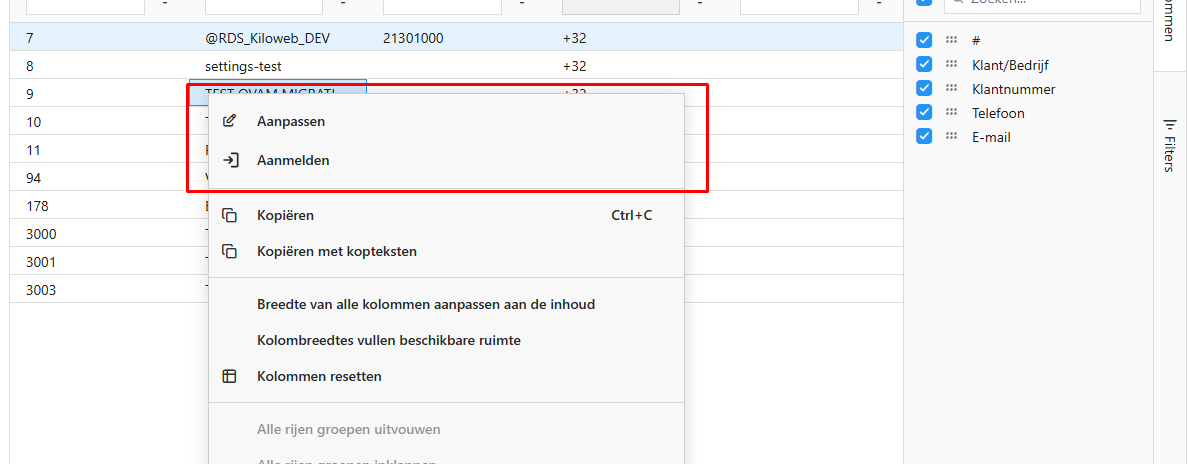
  • Rechtermuisknop: Via een rechtermuisklik op een entiteit verschijnt een contextmenu met dezelfde acties die voorheen onder de drie bolletjes stonden.

    Contextmenu actiesAn image to describe post

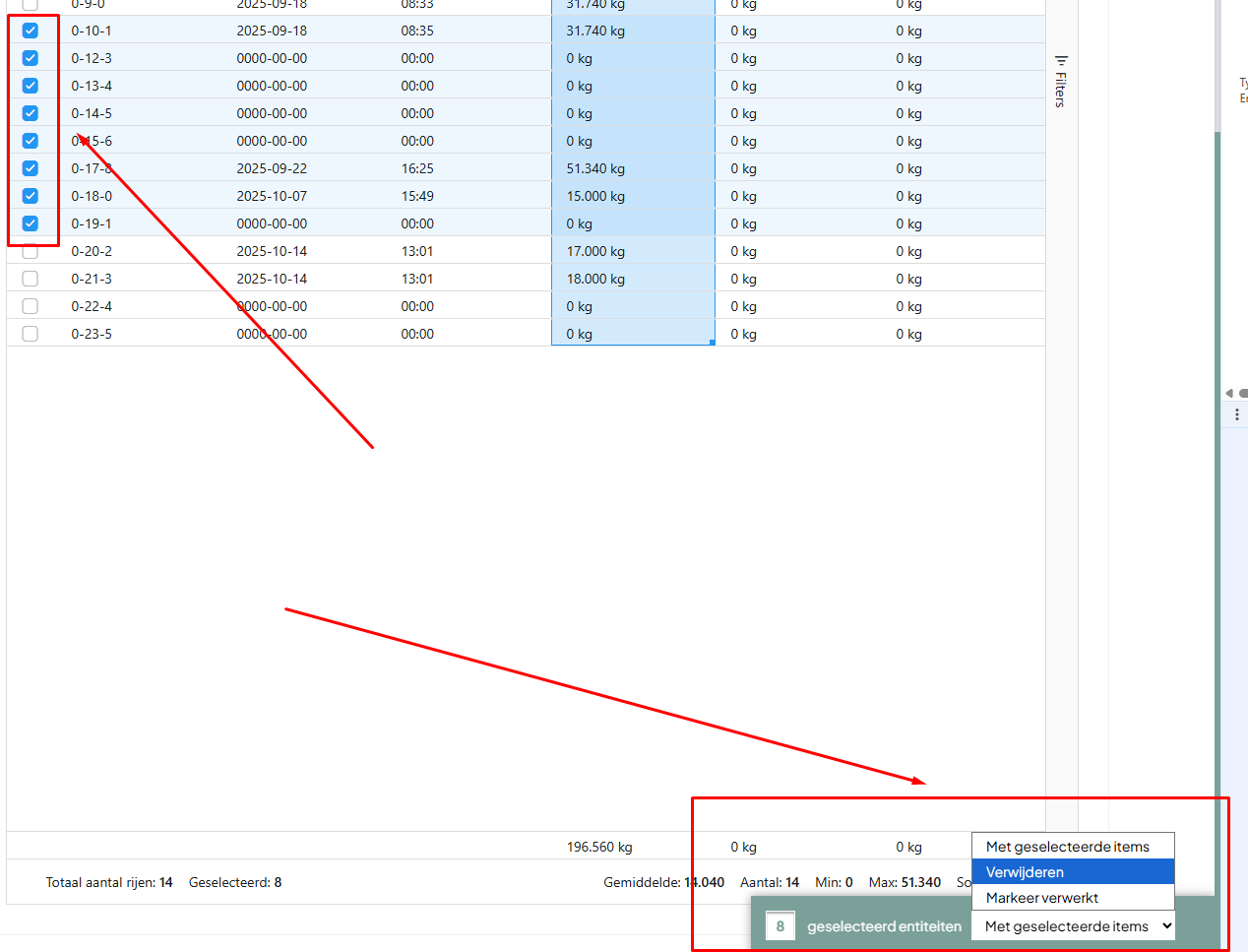
  • Selecteren via checkbox: Klik op de checkbox vooraan om één entiteit te selecteren. Onderaan verschijnt een actievenster waarmee u acties kunt uitvoeren op één of meerdere geselecteerde entiteiten.

    Bulk actiesAn image to describe post

  • Shift-selectie: Selecteer een reeks entiteiten door de Shift-toets ingedrukt te houden terwijl u een tweede entiteit aanklikt. Alle tussenliggende rijen worden automatisch geselecteerd.

📊 Kolommen Beheren

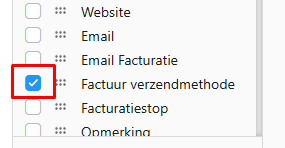
  • Zichtbaarheid: Kies welke kolommen zichtbaar zijn. Standaard staan alle kolommen aan, maar u kunt ze eenvoudig uitschakelen voor een overzichtelijker beeld.

    Kolommen selecterenAn image to describe post

  • Verplaatsen: Rangschik kolommen naar eigen voorkeur door ze te slepen en te weerspiegelen wat voor u prioriteit heeft.

  • Breedte aanpassen: Versmal of verbreed kolommen afhankelijk van hoeveel informatie u direct wilt zien.

  • Resetten: Via het contextmenu kunt u alle kolommen herstellen naar hun oorspronkelijke staat – inclusief zichtbaarheid, volgorde, breedte, filters, sortering en aggregaties.

đŸ—‚ïž Groepering

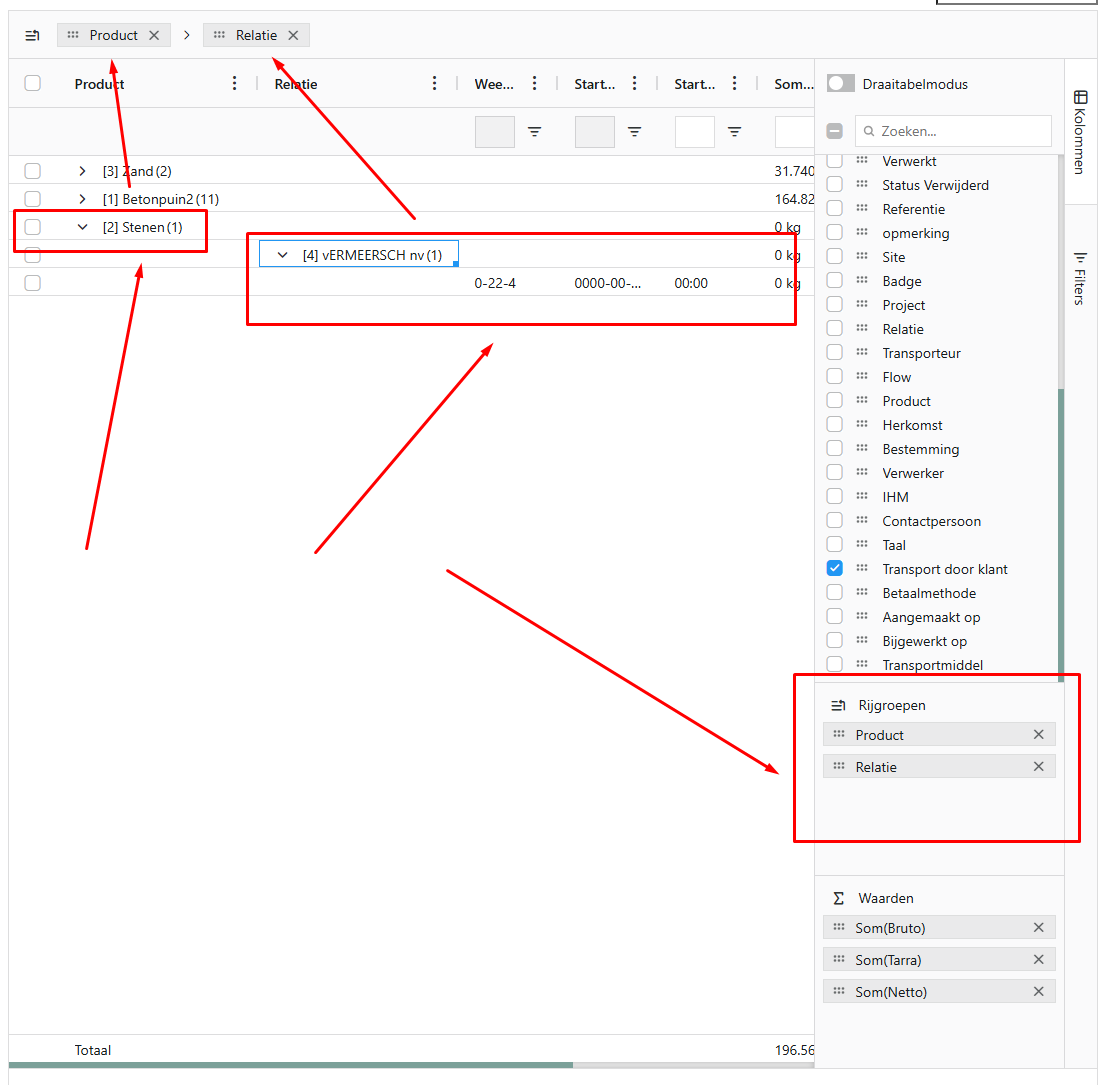
  • Kolomgroepering: Groepeer gegevens op basis van unieke waarden in een kolom om patronen en verbanden beter te visualiseren. Sleep een kolomkop naar de groepeerzone bovenaan om direct te groeperen.

    GroeperenAn image to describe post

🧼 Aggregatie

  • Kolomaggregatie: Pas snel berekeningen toe (zoals som, gemiddelde, minimum, maximum of aantal) op de gegevens in uw overzichtspagina. Aggregaties werken ook perfect op gegroepeerde datasets.

    AggregerenAn image to describe post

  • Snelle aggregatie: Selecteer meerdere cellen door te slepen met de muis. Onderaan verschijnen automatisch berekeningen zoals minimum, maximum, gemiddelde en totaal aantal.

🔍 Filtering

  • Globaal filter: Filter op alle beschikbare velden via het zoekveld rechtsboven voor een snelle zoekactie over alle data.

  • Kolomfilters in hoofding: Gebruik het filtericoon (drie streepjes) in de kolomhoofding voor een Excel-achtige filterinterface met geavanceerde opties zoals "bevat", "begint met", "gelijk aan", enzovoort.

    FiltermogelijkhedenAn image to describe post

  • Kolomfilters in zijpaneel: Voeg filters toe in het zijpaneel voor een overzicht van alle actieve filters. Het paneel kan eenvoudig worden open- en dichtgeklapt voor meer werkruimte.

🔱 Sortering

  • Sorteer per kolom: Klik op de kolomtitel om stijgend of dalend te sorteren. Meerdere niveaus van sortering worden ondersteund, zodat u data op een gelaagde manier kunt ordenen.

🔄 Draaitabelmodus / Pivot-modus

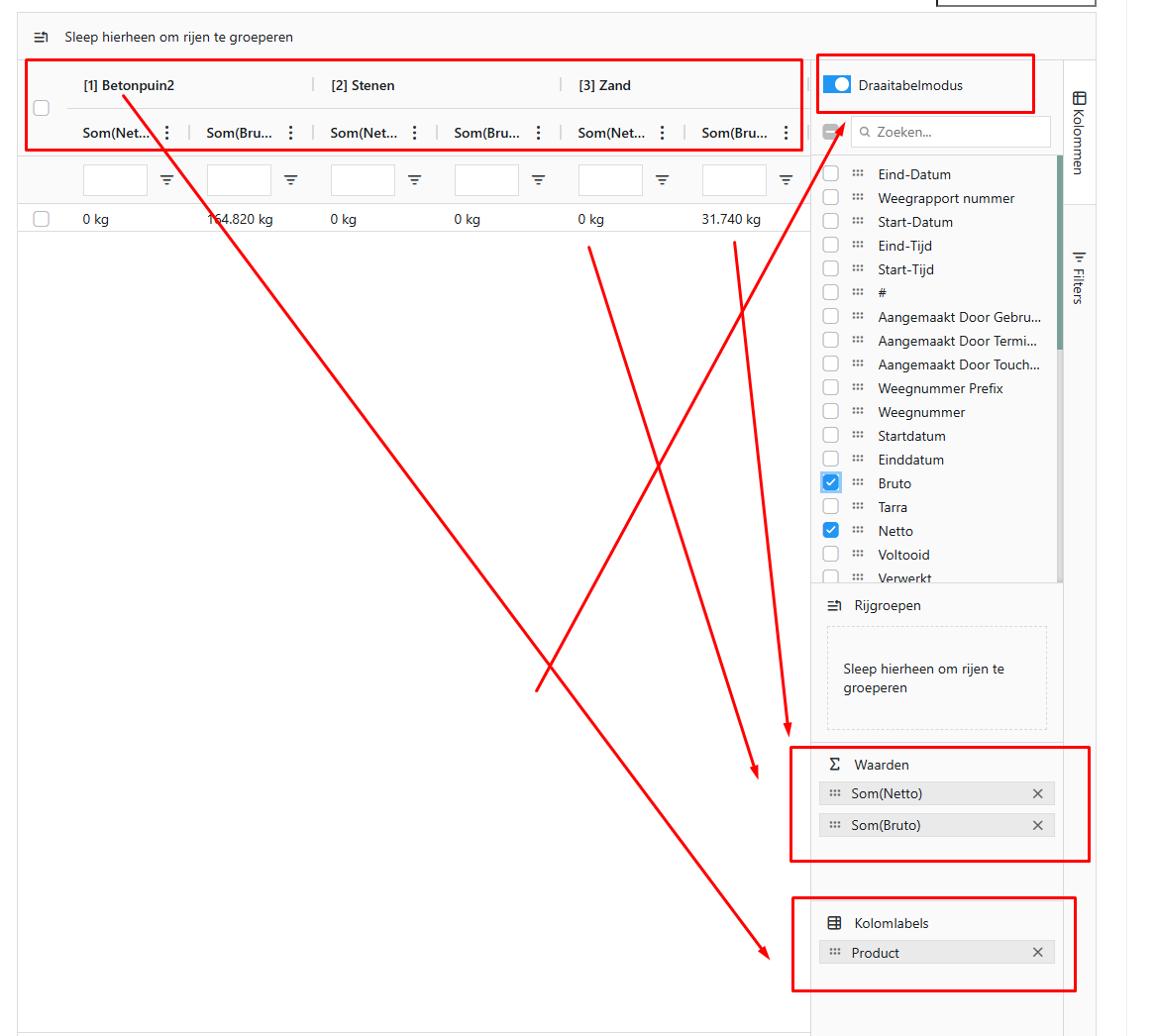
  • Data in perspectief: Draai rijen naar kolommen, sorteer op meerdere niveaus en analyseer snel patronen en trends. Ideaal voor complexe data-analyses en rapportages.

    Kolommen draaienAn image to describe post

đŸ’Ÿ Statefulness

  • Uw voorkeuren blijven bewaard: De applicatie onthoudt automatisch uw kolomindeling, filters, sortering, groeperingen en aggregaties. Zo ziet u bij elk volgend bezoek uw overzicht precies zoals u het achterliet – geen tijdverlies meer met opnieuw instellen!

đŸ‡«đŸ‡· ✹ Pages d'Aperçu AmĂ©liorĂ©es

Nous avons entiÚrement repensé les pages d'aperçu pour rendre votre expérience de travail plus efficace et agréable. Découvrez toutes les nouvelles fonctionnalités ci-dessous.

📐 Design Plus Compact

  • Doublez les entitĂ©s : GrĂące Ă  une conception plus compacte, vous pouvez dĂ©sormais afficher jusqu'Ă  deux fois plus de donnĂ©es sur un seul Ă©cran, ce qui vous offre plus de visibilitĂ© sans dĂ©filement.

⚡ Actions et OpĂ©rations en Masse

  • Double-clic : Ouvrez une entitĂ© (rapport, relation, produit, etc.) directement pour la consulter ou la modifier en double-cliquant dessus.

  • Clic droit : Un clic droit sur une entitĂ© fait apparaĂźtre un menu contextuel avec les mĂȘmes actions que sous les trois points.

    Menu contextuel des actionsAn image to describe post

  • SĂ©lection par checkbox : Cochez la case devant une entitĂ© pour la sĂ©lectionner. Une barre d'action apparaĂźt en bas pour gĂ©rer les actions sur une ou plusieurs entitĂ©s sĂ©lectionnĂ©es.

    Actions en masseAn image to describe post

  • SĂ©lection avec Shift : SĂ©lectionnez une sĂ©rie d'entitĂ©s en maintenant Shift et en cliquant sur une deuxiĂšme entitĂ©. Toutes les lignes intermĂ©diaires sont automatiquement sĂ©lectionnĂ©es.

📊 Gestion des Colonnes

  • VisibilitĂ© : Choisissez quelles colonnes sont visibles. Toutes les colonnes sont activĂ©es par dĂ©faut, mais vous pouvez les dĂ©sactiver pour plus de clartĂ©.

    Sélectionner les colonnesAn image to describe post

  • DĂ©placer : RĂ©organisez les colonnes selon vos prĂ©fĂ©rences en les faisant glisser pour reflĂ©ter vos prioritĂ©s.

  • Ajuster la largeur : RĂ©duisez ou Ă©largissez les colonnes selon la quantitĂ© d'informations que vous souhaitez voir directement.

  • RĂ©initialiser : Dans le menu contextuel, rĂ©initialisez toutes les colonnes Ă  leur Ă©tat d'origine – visibilitĂ©, ordre, largeur, filtres, tri et agrĂ©gations inclus.

đŸ—‚ïž Regroupement

  • Groupement par colonne : Groupez les donnĂ©es par valeurs uniques dans une colonne pour mieux visualiser les modĂšles et les relations. Faites glisser un en-tĂȘte de colonne vers la zone de regroupement en haut pour regrouper instantanĂ©ment.

    RegroupementAn image to describe post

🧼 AgrĂ©gation

  • AgrĂ©gation de colonne : Appliquez rapidement des calculs (somme, moyenne, minimum, maximum ou nombre) sur vos donnĂ©es. Fonctionne Ă©galement parfaitement sur les ensembles de donnĂ©es regroupĂ©es.

    AgrégationAn image to describe post

  • AgrĂ©gation rapide : SĂ©lectionnez plusieurs cellules en faisant glisser la souris. Les calculs apparaissent automatiquement en bas : min, max, moyenne et total.

🔍 Filtrage

  • Filtre global : Filtrez tous les champs disponibles via la barre de recherche en haut Ă  droite pour une recherche rapide sur toutes les donnĂ©es.

  • Filtres par colonne dans l'en-tĂȘte : Utilisez l'icĂŽne de filtre (trois lignes) dans l'en-tĂȘte pour une interface de filtrage type Excel avec des options avancĂ©es comme "contient", "commence par", "Ă©gal Ă ", etc.

    Options de filtrageAn image to describe post

  • Filtres par colonne dans le panneau latĂ©ral : Ajoutez des filtres dans le panneau latĂ©ral pour voir tous les filtres actifs. Le panneau peut ĂȘtre facilement ouvert ou fermĂ© pour plus d'espace de travail.

🔱 Tri

  • Trier par colonne : Cliquez sur le titre de la colonne pour trier en ordre croissant ou dĂ©croissant. Plusieurs niveaux de tri sont pris en charge, vous permettant d'organiser les donnĂ©es de maniĂšre hiĂ©rarchique.

🔄 Mode Tableau CroisĂ© Dynamique

  • DonnĂ©es en perspective : Faites pivoter les lignes en colonnes, triez sur plusieurs niveaux et analysez rapidement les modĂšles et tendances. IdĂ©al pour les analyses de donnĂ©es complexes et les rapports.

    Rotation des colonnesAn image to describe post

đŸ’Ÿ Conservation de l'État

  • Vos prĂ©fĂ©rences sont conservĂ©es : L'application se souvient automatiquement de votre disposition des colonnes, filtres, tri, regroupements et agrĂ©gations. Vous retrouvez votre vue exactement comme vous l'avez laissĂ©e Ă  chaque visite – plus de perte de temps Ă  reconfigurer !

EN ✹ Enhanced Overview Pages

We've completely redesigned the overview pages to make your work experience more efficient and enjoyable. Discover all the new features below.

📐 More Compact Design

  • Double the entities: A more compact design now allows up to twice as much data on a single screen, giving you more visibility without scrolling.

⚡ Actions & Bulk Operations

  • Double-click: Open an entity (e.g., report, relation, product) directly for viewing or editing by double-clicking on it.

  • Right-click: Right-click on an entity to access a context menu with the same actions previously under the three dots.

    Context menu actionsAn image to describe post

  • Select via checkbox: Click the checkbox in front of an entity to select it. An action bar appears at the bottom to perform actions on one or multiple selected entities.

    Bulk actionsAn image to describe post

  • Shift Selection: Select a range of entities by holding Shift while clicking a second entity. All intermediate rows are automatically selected.

📊 Column Management

  • Visibility: Choose which columns are visible. All columns are on by default, but you can easily hide them for a cleaner view.

    Select columnsAn image to describe post

  • Move: Arrange columns according to your preferences by dragging them to reflect what's priority for you.

  • Adjust Width: Narrow or widen columns depending on how much information you want to see directly.

  • Reset: Use the context menu to reset all columns to their original state – including visibility, order, width, filters, sorting, and aggregations.

đŸ—‚ïž Grouping

  • Column Grouping: Group data by unique column values to better visualize patterns and relationships. Drag a column header to the grouping zone at the top to instantly group.

    GroupingAn image to describe post

🧼 Aggregation

  • Column Aggregation: Quickly apply calculations (sum, average, minimum, maximum, or count) on your overview page data. Aggregations also work perfectly on grouped datasets.

    AggregationAn image to describe post

  • Quick Aggregation: Select multiple cells by dragging your mouse. Calculations like minimum, maximum, average, and total count appear automatically at the bottom.

🔍 Filtering

  • Global Filter: Filter across all available fields using the search bar at the top right for quick search across all data.

  • Column Filters in Header: Use the filter icon (three lines) in the column header for an Excel-like filter interface with advanced options such as "contains", "starts with", "equals", etc.

    Filter optionsAn image to describe post

  • Column Filters in Sidebar: Add filters in the sidebar to view all active filters. The panel can be easily toggled open or closed for more workspace.

🔱 Sorting

  • Sort by Column: Click the column title to sort ascending or descending. Multiple levels of sorting are supported, allowing you to organize data in a layered manner.

🔄 Pivot Mode

  • Data in Perspective: Pivot rows to columns, sort on multiple levels, and quickly analyze patterns and trends. Ideal for complex data analysis and reporting.

    Pivot columnsAn image to describe post

đŸ’Ÿ Statefulness

  • Your Preferences Are Saved: The application automatically remembers your column layout, filters, sorting, groupings, and aggregations. Your overview looks exactly as you left it on your next visit – no more time wasted reconfiguring!

📝 Tips & Best Practices

  • Keyboard Shortcuts: Use Shift + Click for quick multi-selection and Double-click to open entities instantly
  • Save Custom Views: Your preferences are automatically saved, so create different configurations for different workflows
  • Combine Features: Use grouping + aggregation + filtering together for powerful data analysis
  • Export Options: All filtered and grouped views can be exported for further analysis

For questions or feedback, please contact our support team.


Last updated: October 15, 2025